Install DietCIT for Quick Access
Follow these simple steps to add DietCIT to your home screen for an app-like experience.
For Android (Chrome)
- Open the DietCIT website in your Chrome browser.
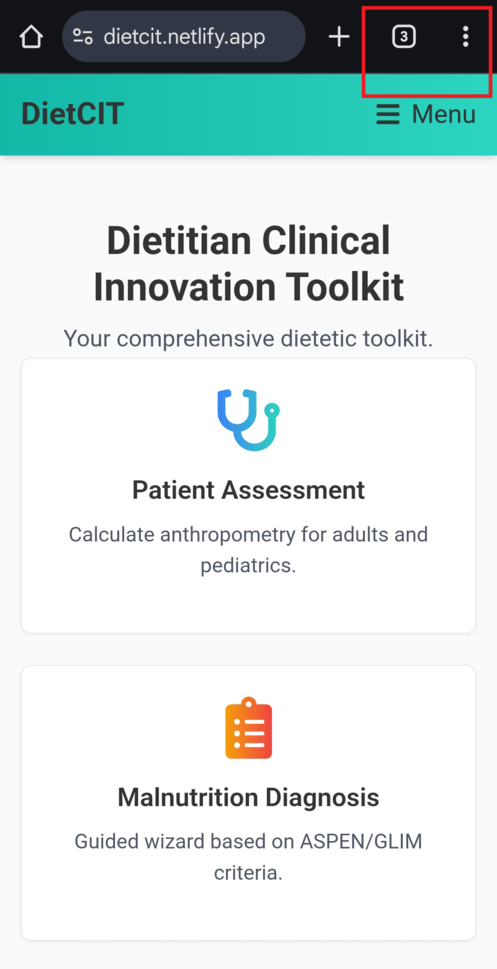
- Tap the **three-dot menu icon** in the top-right corner of the screen.
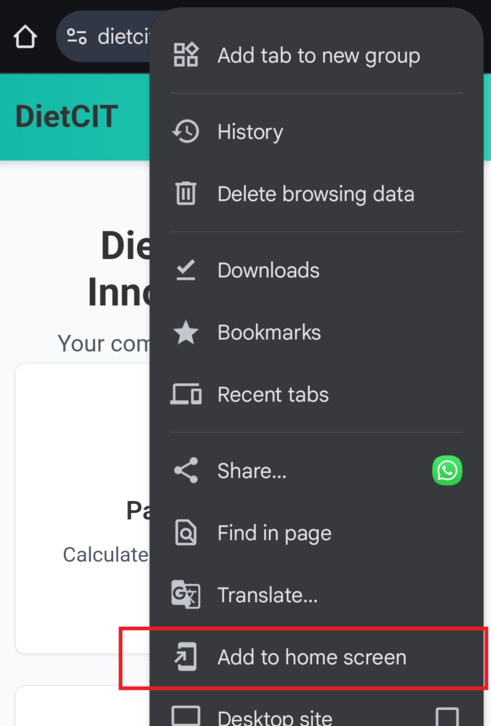
- From the dropdown menu, tap on **"Install app"** or **"Add to Home screen"**.
- Confirm the installation by tapping **"Install"** in the pop-up prompt.
- The DietCIT app will now be on your home screen and in your app drawer.
For iPhone & iPad (Safari)
- Open the DietCIT website in your Safari browser.
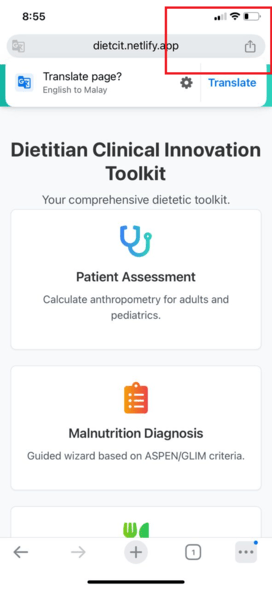
- Tap the **"Share"** button, which is the square icon with an arrow pointing up at the bottom of the screen.
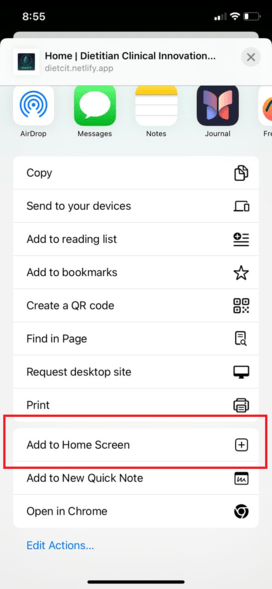
- Scroll down in the share menu and tap on **"Add to Home Screen"**.
- You can edit the name of the app if you wish, then tap **"Add"** in the top-right corner.
- The DietCIT app icon will now appear on your home screen.
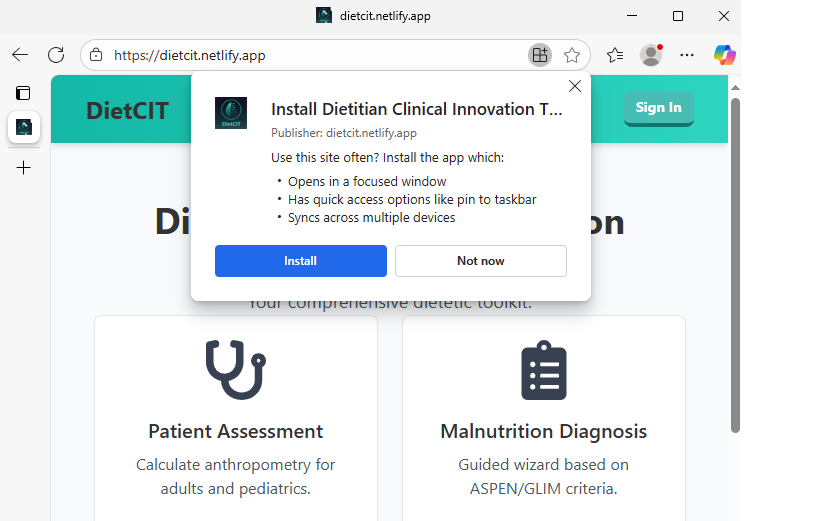
For Desktop (Chrome, Edge, Brave)
- Open the DietCIT website in a Chromium-based browser like Chrome, Edge, or Brave.
- Look for the **"Install" icon** in the address bar, usually on the right side. It might look like a computer monitor with a downward arrow.
- Click the icon and then click the **"Install"** button in the confirmation prompt.
- The DietCIT app will be installed and can be launched from your desktop or applications folder like a native app.
Is It Safe to Install?
Yes, installing DietCIT as a Progressive Web App (PWA) is very safe. Here’s why:
- It's Still a Website: A PWA is essentially an enhanced website. It runs within your browser's secure environment, just like any other site. It doesn't have deep access to your device's files or operating system like a native app from an app store would.
- Secure Connection: PWAs are required to be served over a secure HTTPS connection. This means all data transmitted between you and the app is encrypted.
- No App Store Needed: You are installing the app directly from the trusted source (our website), without going through an intermediary app store.
- Takes Up Minimal Space: A PWA only caches the necessary components to work offline. It doesn't take up significant storage space on your device.
Think of it as a super-powered bookmark that you can access directly from your home screen for a faster, more convenient experience.